An HDR image—short for High Dynamic Range—is what you get when you combine two or more photos of the same scene taken at different exposure levels.
Here’s the idea: a single photo often struggles to capture the full range of brightness the human eye can see.
For example, if you expose for the bright sky, the foreground might turn into a dark silhouette; if you expose for the shadowy ground, the sky could blow out into a white mess.
HDR solves this by blending the best parts of multiple shots.
Imagine you take one photo that’s underexposed (to keep detail in the bright highlights), one that’s overexposed (to reveal detail in the dark shadows), and one in between.
You can then use editing software, like photoshop, to then merges these exposures into a single composite image that keeps the highlight detail from the darker shot and the shadow detail from the brighter one.
The result is a photo that looks closer to what your eyes naturally perceive, with more balanced light and detail across the scene.
It can be used subtly for natural-looking photos, or pushed further for a more surreal, almost painterly style.
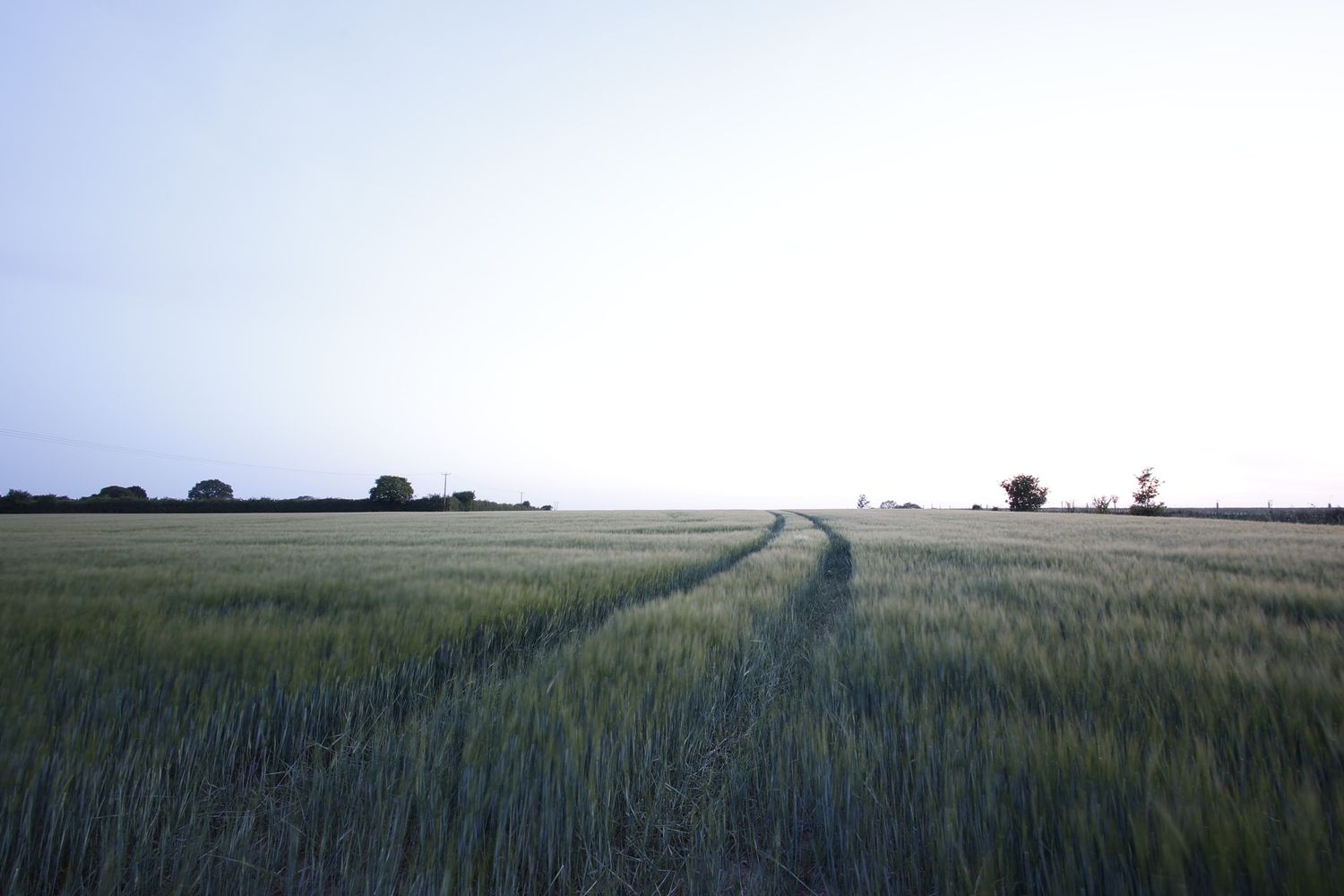
16mm, f11, ISO 100, 15s
Above, you'll find the first image, it's a field of crops that's just around the corner from my house, the crops were short with a little sway in them from the wind, it was a fairly clear night when taking this shot
You can come back at any time to make more changes.
I had my camera set on a tripod, keeping it nice and still, when you have all your settings set to either auto or manual and if you were aiming for a balanced exposure, all those crops would be nearly black, because the camera would be trying to lower the white exposure of the sky to a medial settings.
Now there'a few ways you could brighten up the foreground, you could turn the ISO up, but I wouldn't recommend that if you can help it, you'll end up with so much noise where you're trying to bring near-black shadowed areas to light, you'd never be able to fix it in post-process.
Another way would be to say, shine a light, have a torch on you, this can be a fun way expose images when you're taking pictures of the stars you would want, say a barn or a car, a singular focus point exposed, but personally I wouldn't do it for the shot I was aiming for, which was a wide landscape without a singular point of interest in it.
Thirdly we have shutter speed, keeping your ISO as low as possible, getting your f stop to what you need, you then increase the shutter speed to increase the time the light is entering into your lens to be absorbed by your sensor, this is my preferred way to over-expose images because you are able to keep the noise from high ISOs, out of the image.
There can be some drawbacks still, for example moving objects in the shot.
Doing this is street photography can cause motion blur with people walking by or light trails from cars, or airplanes if you're getting the sky involved in the shot, my image for example, the crops were swaying in the wind.
However as you'll see in the final shot, I used that sway and I played into it more in the editing process, to be explained further on.
- Over-expose foreground, preferably by shutter speed methods.
- To make sure the foreground is in focus, it doesn't matter if the background isn't as we are combing them later.
- Make sure you are happy with the framing of the shot, as you will have to keep the camera in place for the next shot too.
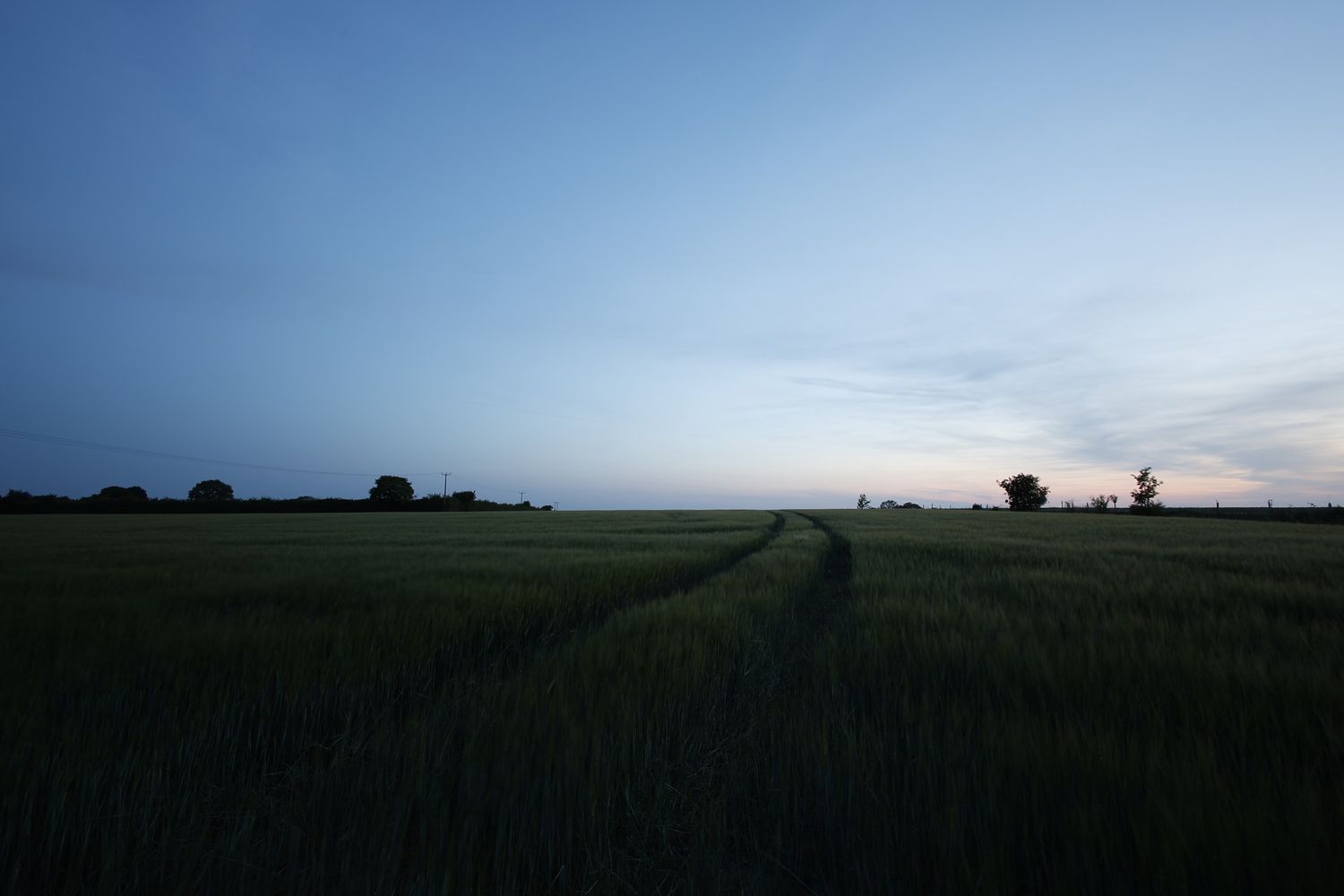
16mm, f11, ISO 100, 4s
Keeping the camera in the exact same position, I altered the Shutter Speed to allow less light in, I also made sure to keep the ISO at 100 to make sure as little noise is incorporated into the photo as possible.
Focused to infinity, my aim this time was to get detail in the sky and clouds, and a darker horizon to be able to gently merge the photos together through masking in photoshop.
As you can see, with my settings, I still had to have my Shutter Speed open for 4 seconds, if the camera wasn’t steady on a tripod, this wouldn’t be possible as there would be so much motion blur trying to hold it still in my hands.
- To keep the camera in the same position while changing the settings.
- Keeping the ISO as low as possible, alter the Shutter Speed to lower the exposure, to get the detail in the sky clear and to get darker tones on the horizon.
- Make sure the focus is set to infinity to capture as much clear detail in the sky as possible, though as night time there will still be slight blurring in the clouds due to Shutter Speed timing.
I’ll presume you know your way around photoshop a little already, so this isn’t a learn how to tutorial, this will be a bullet point section of what I done to achieve my results.
- Firstly, I opened the foreground photo, locking the photo so it can’t be moved or edited on just yet. So you know, all my shots are in RAW format to get as much detail as possible.
- Then I will open my background/sky photo, place that photo on top of the foreground photo.
- Change the opacity of the sky layer to roughly 60%, I zoom in and move the photo pixel by pixel until it matches up to the foreground layer as close as possible, opacity back to 100%.
- Selecting the sky using the AI feature, it helps, but it’s not perfect, I would then select the Mask tool, and fill the sky in the Masked section as Black, that hides the sky, so the photo would look very dark right now.
- While having the mask selected, I invert the mask, so the sky reveals and the dark foreground is hidden.
- I would then select the brush tool, change the opacity to around 40%, zoom in on the horizon and gently brush in to blend the foreground and sky photo, so it’s a smooth transition, more natural and not so sharp edged.
- From here I would then merge both layers, convert the new single layer as a smart object (this makes it so you can redo the filters you’re about to do at any time as they will save in steps.)
- Select the camera raw filter, go to the mark section, select sky and I would edit the sky by itself to how I want it.
- Click that mask section and select duplicate and invert, which will select everything that isn’t the sky, edit that section to how I see fit.
- Then going back to the main section in the camera raw filter, I would adjust a couple of settings to my taste and then click done.
- Lastly, depending how you want to finish your photo, add a gradient map to add colour within the light and dark sections of your photo.
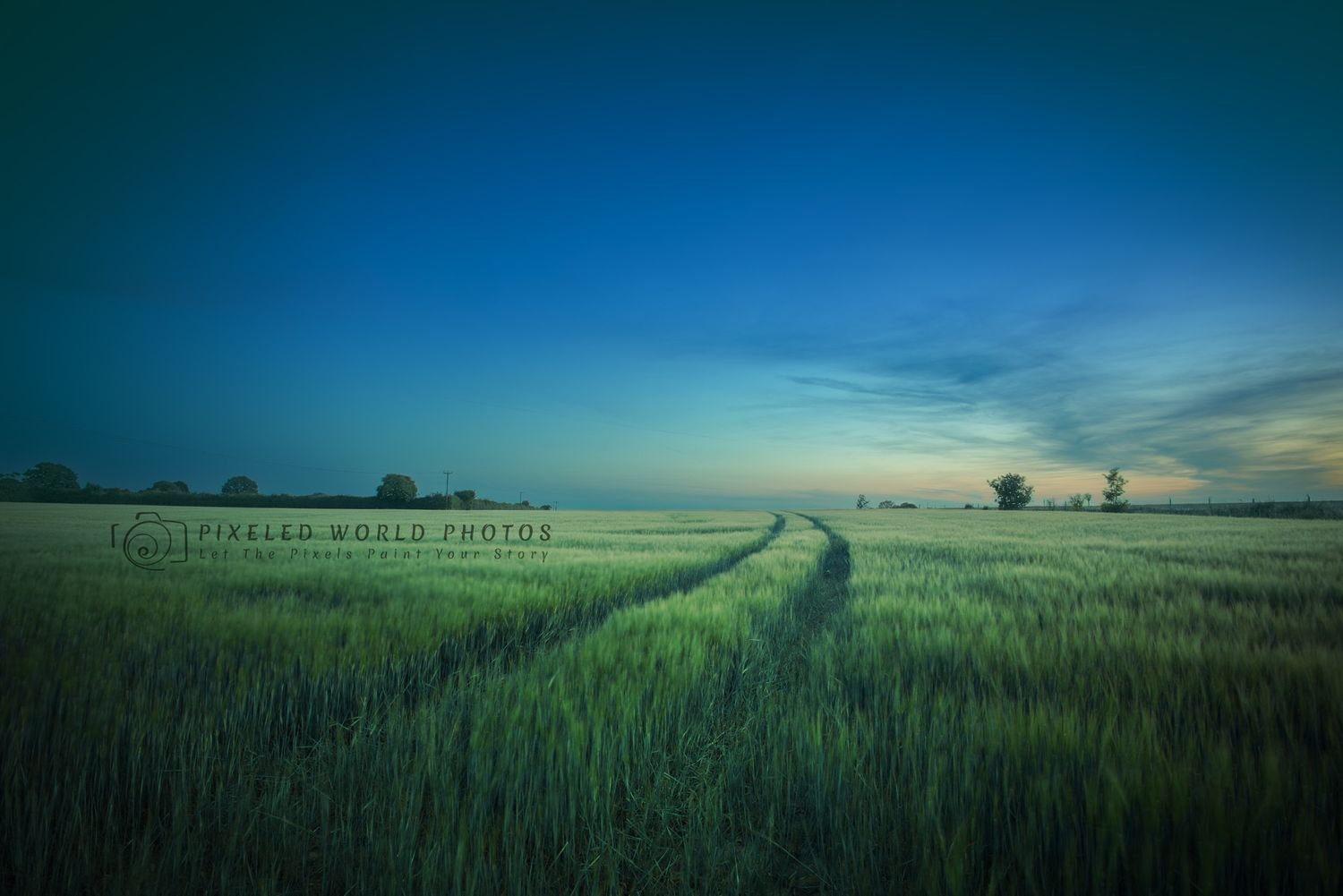
Below is my finished product, complete with a watermark logo on it.
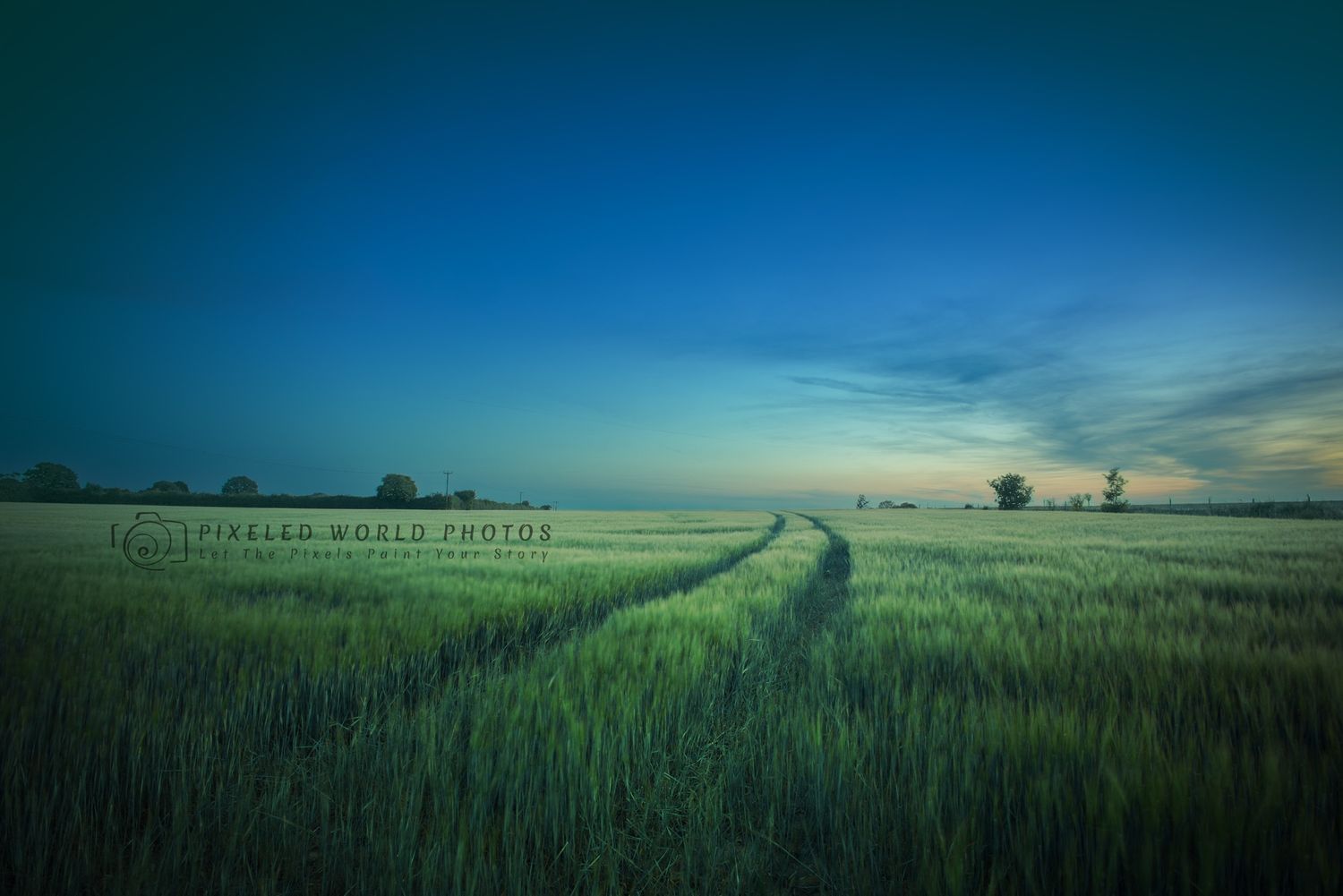
Mystical Fields
You’ll notice how I gave the colours a slightly stronger saturation but adjusting tones slightly to give a slightly otherworldly feel to it, the crops were slightly blurred from the wind, so I leaned into that by lowering the texture on them to give a bit of a stronger breezed effect.
Framing is important in all shots, so you’ll notice the tractor trails that lead off into the horizon and beyond, something like is called Leading Lines, something to draw your eyes, wanting you to follow it.
Thank you for reading another chapter in my blog series, this one felt more educational instead of expressive and adventurous, but I hope you liked seeing my process of creating this image.
See you in the next one,
Richard.
Pixeled World Photos.